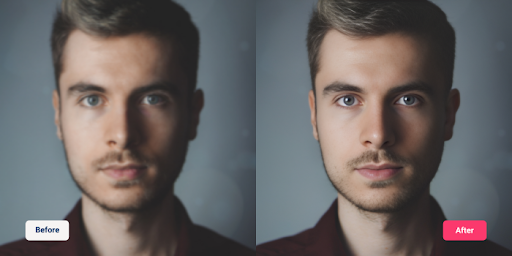
AI image results can look low-quality for many reasons. The prompt may be too vague. The model may not fit the image style. The resolution may be too small. The lighting, composition, aspect ratio, or export settings may also weaken the final result.
Many users add words like "HD," "8K," or "realistic." That helps little without clear visual direction. A strong AI image needs a defined subject, useful details, natural lighting, the right frame, and a workflow that matches the final use case.
This guide explains why AI images look blurry, fake, generic, distorted, or unfinished. It also shows how to fix low-quality AI images with better prompts, better image settings, reference images, editing, upscaling, and cleaner exports.
Quick answer: AI image results usually look low-quality because the prompt is vague, the model is not suitable, the resolution is too low, the lighting is unclear, or the image loses quality during export. You can fix this by improving prompt details, choosing the right model, using a better aspect ratio, adding reference images, editing defects, and exporting at the correct size.
Why AI Images Become Blurry or Distorted
-
Low generation resolution reduces detail, so you must upscale the image to restore sharpness.
-
Vague prompts remove clear guidance, so the model produces distorted or unclear results
-
Conflicting styles confuse the model, so it generates inconsistent visual output.
-
Weak structure in the prompt leads to deformities in faces, hands, and objects.
-
Wrong model choice lowers accuracy because the model is not trained for that type of image.
-
Compression or export reduces quality and creates visible artifacts after saving.
AI Image Artifacts: Causes and How to Fix Them
-
Model reconstruction errors create artifacts when the diffusion process fails to converge cleanly.
-
Over-smoothing of textures removes natural detail and produces plastic-like surfaces.
-
Incorrect feature blending generates warped edges, duplicated elements, and unnatural shapes.
-
Low guidance strength reduces prompt control, leading to unstable or noisy outputs.
-
Poor sampling quality increases random noise and visible pixel-level distortions.
-
Lack of reference conditioning results in inconsistent materials, lighting, and object structure.
Why Your AI Prompts Produce Poor Quality Images
-
Insufficient prompt specificity reduces control over composition, lighting, and structure, resulting in generic outputs.
-
Missing spatial and contextual details force the model to infer scene layout, often causing visual inconsistencies.
-
Overloaded or conflicting descriptors dilute semantic clarity and weaken prompt conditioning.
-
Absence of lighting direction and material definition leads to flat and unrealistic rendering.
-
Lack of hierarchical prompt structure prevents prioritization of key visual elements.
-
No negative constraints allow unwanted artifacts, distortions, and irrelevant elements to appear in the output.
What Actually Improves AI Image Quality
-
Control resolution and generation settings for sharper outputs.
-
Write structured prompts with clear subject, lighting, and composition.
-
Avoid conflicting styles and vague descriptions.
-
Use the correct model for the right type of image.
-
Apply reference images for accuracy-critical results.
-
Export carefully to avoid compression loss.
Why Do AI Images Look Bad?
AI images usually look bad when the tool receives weak visual instructions or when the output settings do not match the final goal. Start by finding the visible problem. Then apply the right fix.
· Blurry or soft result: The image may be too small, poorly upscaled, or missing sharp detail instructions. Generate at a higher size, use clearer detail terms, and upscale only the best version.
· Fake or plastic look: The prompt may lack natural lighting, real texture, shadows, and camera context. Add realistic light direction, material details, skin texture, and a believable environment.
· Generic image: The prompt may describe the subject but not the visual style. Add composition, mood, camera angle, color palette, and image purpose.
· Bad hands or faces: The model may struggle with small faces, complex poses, or overlapping fingers. Use closer framing, simpler poses, or edit the weak area after generation.
· Unreadable text: Many AI image models still struggle with exact letters and words. Generate the image without text and add the text manually later.
· Wrong product details: The model may guess shapes, logos, labels, jewelry details, or materials. Use a reference image when accuracy matters.
· Poor colors: The prompt may not define the color palette, material finish, or lighting temperature. Add exact colors and visual mood.
· Quality drops after upload: The file may be compressed, resized, or exported in the wrong format. Export at the correct size and avoid repeated compression.
The fastest fix is not always a longer prompt. The best fix depends on the exact quality problem.
What Low-Quality AI Images Look Like Before You Fix Them
Low-quality AI images do not fail in only one way. An image can look weak because it has technical flaws, poor realism, wrong details, or low commercial value.
Technical quality issues include:
· Blur.
· Pixelation.
· Noise.
· Soft edges.
· Low resolution.
· Compression marks.
· Weak texture detail.
· AI image artifacts, such as warped edges, strange textures, duplicated objects, or unnatural patterns.
Visual quality issues include:
· Flat lighting.
· Fake skin.
· Plastic surfaces.
· Generic stock-photo style.
· Weak composition.
· Poor depth.
· Unnatural colors.
Accuracy issues include:
· Extra fingers.
· Distorted faces.
· Wrong product shapes.
· Fake logos.
· Broken text.
· Incorrect object details.
· Inconsistent materials.
Commercial quality issues include:
· No space for text.
· Poor fit for ads or thumbnails.
· Off-brand colors.
· Weak product focus.
· The image looks too obviously AI-generated.
· Wrong size for the platform.
Before changing the prompt, identify the type of quality issue. A blurry image needs a different fix than an inaccurate product image. A fake-looking portrait needs a different fix than a compressed export.
Blurry AI-Generated Images: Causes and Fixes
Blurry AI-generated images usually come from low resolution, weak focus details, poor upscaling, or bad export settings. The image may also look soft when the subject is too far from the camera.
Common causes:
· The image was generated at a small size.
· The prompt did not ask for sharp details.
· The subject is too small in the frame.
· The image was stretched after download.
· The file was saved or uploaded with heavy compression.
How to fix blurry AI images:
· Generate the image at the highest useful size your tool supports.
· Use terms like "sharp focus," "crisp edges," "clear texture," and "high-detail product photography."
· Use close-up framing for faces, products, jewelry, food, and small objects.
· Upscale only the strongest base image.
· Avoid stretching a small image into a large banner.
· Export in the right size for the final platform.
Better prompt example:
"Close-up product photo of a silver pendant on red velvet, sharp metal edges, crisp chain details, soft studio lighting, shallow depth of field, clean luxury background."
This prompt works better because it describes what sharpness should look like.
AI Images Look Fake or Plastic: How to Make Them Realistic
Fake-looking AI images often come from weak lighting, over-polished textures, unrealistic skin, or style words that make the result too glossy. The image may look clean but still feel artificial.
Common causes:
· The lighting has no clear source.
· Skin looks too smooth.
· Shadows look weak or impossible.
· Materials lack texture.
· The prompt uses too many polished style words.
· The scene has no real-world context.
How to make AI images look more realistic:
· Add a clear light source, such as "soft window light from the left."
· Mention natural textures, such as skin pores, fabric weave, metal reflection, or wood grain.
· Add realistic shadows and depth.
· Use camera context, such as close-up, 45-degree angle, wide shot, or shallow depth of field.
· Avoid overusing words like "perfect," "flawless," and "ultra glossy."
· Add small natural details when needed.
Better prompt example:
"Realistic lifestyle portrait of a man sitting near a window, soft natural light from the left, gentle shadows on the face, natural skin texture, relaxed expression, warm indoor background, shallow depth of field."
Realism improves when the image follows believable light, texture, and camera behavior.
Generic AI Image Results: How to Add Better Visual Direction
Generic AI images happen when the prompt describes the subject but not the scene. The model fills the missing details with average-looking choices.
A weak prompt says:
"Create an image of a laptop on a desk."
A stronger prompt says:
"Create a modern laptop on a clean wooden desk, 45-degree camera angle, soft window light from the right, blurred plant in the foreground, minimal workspace, editorial tech photography style, negative space for blog headline."
Add these details to avoid generic results:
· Purpose: blog hero, ad creative, product image, thumbnail, poster, or social post.
· Camera angle: close-up, top view, low angle, wide shot, or 45-degree view.
· Composition: centered subject, rule of thirds, left-side subject, or negative space.
· Lighting: soft window light, studio lighting, golden hour, or dramatic side light.
· Mood: clean, premium, cozy, futuristic, editorial, minimal, or cinematic.
· Background: plain studio, modern office, outdoor street, luxury box, or lifestyle scene.
· Color palette: neutral, warm, dark, pastel, monochrome, or brand-specific colors.
The goal is not to make the prompt longer. The goal is to make each detail useful.
AI Prompt Mistakes That Lower Image Quality
Prompt mistakes are one of the main reasons AI image results look weak. The model can only follow the instructions it receives.
Mistake 1: Writing a one-line prompt
· Problem: The model has to guess the style, lighting, angle, and background.
· Fix: Add subject, setting, lighting, camera angle, composition, and use case.
Mistake 2: Using empty quality words
· Problem: Words like "HD" and "high quality" do not explain the visual result.
· Fix: Use specific details like "crisp metal texture," "sharp edges," or "natural shadows."
Mistake 3: Mixing too many styles
· Problem: A prompt like "realistic cartoon cinematic 3D vintage futuristic" gives the model conflicting signals.
· Fix: Choose one main style and support it with matching details.
Mistake 4: Ignoring lighting
· Problem: Weak lighting makes images look flat, fake, or plastic.
· Fix: Mention the light source, direction, and mood.
Mistake 5: Forgetting negative instructions
· Problem: The model may add blur, extra objects, distorted hands, or fake text.
· Fix: Add simple negative constraints when the tool supports them.
Mistake 6: Asking for exact text inside the image
· Problem: Many image models still struggle with readable text.
· Fix: Generate the visual first, then add text manually in an editor.
Mistake 7: Overloading the prompt
· Problem: Too many details can confuse the main visual direction.
· Fix: Keep the prompt focused on the final image goal.
A cleaner prompt usually creates a cleaner image.
Wrong AI Image Model: Why Tool Choice Affects Image Quality
The wrong AI image model can lower quality even when the prompt is clear. A model built for illustration may not create realistic product photos, portraits, or commercial images well.
Different models handle different tasks better. Some are stronger for portraits. Some work better for illustrations, anime, product photos, 3D renders, or concept art. A mismatch can make the result look low-quality even when the prompt is clear.
Signs the model is the problem:
· Faces still look fake after better prompts.
· Product details keep changing.
· Text stays unreadable.
· Jewelry or packaging details are inaccurate.
· Every result has the same artificial style.
· The tool does not support reference images.
· The export size is too small.
Better model choices by use case:
· Use a photorealistic model for portraits and lifestyle scenes.
· Use a product-focused workflow for ecommerce images, jewelry, packaging, and catalog visuals.
· Use an illustration model for posters, cartoons, game art, or stylized graphics.
· Use image-to-image features when you need accuracy.
· Use inpainting or editing when only one part needs repair.
If the same issue appears after several strong prompts, stop rewriting the prompt. Test another model, tool, or workflow.
Bad Hands, Faces, Text, and Product Details in AI Images
Some AI image problems happen because the task is difficult for the model. This is common with hands, faces, readable text, logos, jewelry, product labels, and exact object shapes.
Hands and fingers
Hands often fail when fingers overlap, bend, or hold objects.
Fix it by:
· Using simple hand poses.
· Showing fewer fingers.
· Avoiding complex gestures.
· Cropping hands out when they are not needed.
· Editing the hand area after generation.
Faces and eyes
Faces can distort when they are small, far away, or placed in a crowd.
Fix it by:
· Using one main subject.
· Choosing a closer crop.
· Avoiding too many people in one image.
· Adding natural facial details.
· Editing the face if the base image is strong.
Text and logos
Text often appears broken because many image models treat letters as shapes.
Fix it by:
· Generating the image without text.
· Leaving space for text.
· Adding the text manually later.
· Using a design editor for logos and headlines.
Product and jewelry details
Exact products need stronger control. A text-only prompt may change the shape, color, chain, stone, label, package, or material.
Fix it by:
· Uploading a real product reference.
· Keeping the product shape unchanged.
· Using image-to-image editing.
· Placing the real product on an AI-generated background.
· Editing small defects manually.
For commercial images, accuracy matters more than creativity. Use references when the object must stay correct.
For product or jewelry images, text-only prompts are rarely enough when the exact shape, engraving, material, or chain design must stay accurate.
Image Resolution, Aspect Ratio, and Export Issues That Reduce AI Image Quality
Image size and format can make a good AI result look weak. A strong prompt cannot fix a small file, a wrong frame, or a compressed export.
Resolution issues
Low resolution reduces sharpness, texture, and detail. This is obvious in faces, jewelry, products, fabric, food, and background elements.
Fix it by:
· Generating at a larger native size.
· Upscaling the best image.
· Avoiding extreme resizing.
· Keeping a high-resolution original file.
Aspect ratio issues
The wrong aspect ratio can ruin the composition. A vertical image may not work for a blog banner. A horizontal image may not work for a mobile story.
Use:
· Square ratio for simple product images and balanced social posts.
· Vertical ratio for portraits, fashion, jewelry, reels, stories, and mobile-first content.
· Horizontal ratio for blog hero images, website banners, thumbnails, and landscape scenes.
Export issues
Quality can drop after download or upload.
Avoid:
· Screenshots as final files.
· Repeated compression.
· Stretching small images.
· Saving the same JPEG again and again.
· Uploading the wrong dimensions.
Use PNG for graphics, clean designs, and text-heavy visuals. Use high-quality JPEG for realistic photo-style images when file size matters.
How to Improve AI Image Quality Before Clicking Generate
Better AI image quality starts before you click generate. A few checks can prevent most weak results.
Use this friendly pre-generation review:
1. Purpose check
· Where will the image appear?
· Is it for a blog, ad, product page, thumbnail, social post, or banner?
· Does the image need space for text?
2. Subject check
· What should the viewer notice first?
· Is the main subject clear?
· Are there too many objects competing for attention?
3. Frame check
· Does the aspect ratio match the platform?
· Should the image be square, vertical, or horizontal?
· Will anything important get cropped?
4. Lighting check
· Where is the light coming from?
· Should the mood be soft, dramatic, warm, clean, or premium?
· Do the shadows need to look natural?
5. Detail check
· Which materials matter?
· Do you need skin texture, metal reflection, fabric detail, food texture, or product edges?
· Are the important details clearly described?
6. Accuracy check
· Does the image need to match a real product, person, logo, or design?
· If yes, do not rely on text alone.
· Use a reference image.
7. Finish check
· Will the image need editing?
· Will text be added later?
· Will the final file need upscaling or resizing?
In real workflows, the cleanest result usually comes from generating a strong base image first, then fixing small defects with editing or upscaling.
This checklist makes the prompt more intentional. It also reduces the need for repeated regeneration.
Better Prompt Formula for High-Quality AI Images
A strong prompt gives the model a clear visual path. It should explain the subject, setting, lighting, camera angle, style, detail level, and what to avoid.
Use this formula:
Subject + action or pose + environment + lighting + camera angle + composition + style + important details + negative instructions
Prompt template:
"Create an image of [subject] [action or pose] in [environment], with [lighting], shot from [camera angle], using [composition], in [style], with [important details], avoid [common mistakes]."
Product image example:
"Create a silver jewelry pendant displayed inside a premium jewelry box on red velvet paper, soft studio lighting from the upper left, close-up camera angle, shallow depth of field, realistic metal reflections, crisp chain details, luxury product photography style, avoid blurry edges, distorted chain, fake gemstones, and extra shadows."
Portrait example:
"Create a realistic portrait of a young professional in a modern office, soft window light from the left, close-up framing, natural skin texture, relaxed expression, clean background, editorial photography style, avoid plastic skin, distorted eyes, and harsh shadows."
Blog hero image example:
"Create a clean blog hero image about AI image quality, modern workspace with AI-generated visuals on a laptop screen, soft natural lighting, horizontal composition, negative space on the right for headline text, minimal tech style, avoid clutter and unreadable text."
A good prompt does not need to be huge. It needs to be clear, relevant, and controlled.
Common Mistakes That Make AI Images Look Low-Quality
Use this quick list to catch the biggest quality problems.
Too vague: The prompt does not explain lighting, setting, style, or composition.
Too many styles: The prompt mixes realistic, cartoon, 3D, cinematic, vintage, and futuristic in one request.
No light direction: The image looks flat because the prompt does not define the light source.
Wrong aspect ratio: The frame does not match the final platform.
No reference image: The user expects exact product or brand accuracy from text alone.
· Bad text request: The prompt asks the model to create readable words inside the image.
Overuse of quality words: The prompt says "HD" or "8K" but gives no useful detail.
No negative constraints: The prompt does not tell the model what to avoid.
No editing step: The user expects the first generation to be final.
Poor export: The final image loses quality after resizing, screenshot saving, or compression.
Fixing these mistakes will not make every result perfect. It will remove the most common reasons AI image results look low-quality.
Frequently Asked Questions
Why do my AI images look blurry?
AI images often look blurry because the output size is too small, the prompt lacks sharp detail, or the image was enlarged without proper upscaling. Generate at a higher size, add clear detail terms, and upscale only the best result.
Why do AI images look fake?
AI images look fake when lighting, texture, shadows, or anatomy do not feel natural. Add a clear light source, realistic materials, camera context, and natural imperfections.
How do I improve AI image quality?
Improve AI image quality by using a clear prompt, the right model, better lighting, correct aspect ratio, reference images when needed, editing, upscaling, and proper export settings.
Why do AI images look generic?
AI images look generic when the prompt lacks visual direction. Add mood, camera angle, composition, background, color palette, and final use case.
What are AI image artifacts?
AI image artifacts are unwanted visual errors such as warped edges, strange textures, duplicated objects, unnatural patterns, or broken details. You can reduce them with clearer prompts, better models, editing, inpainting, and cleaner exports.
Can upscaling fix a low-quality AI image?
Upscaling can improve size and sharpness, but it cannot fix bad anatomy, wrong text, weak composition, or incorrect product details. Upscale only images that already have a strong base.
Why does AI generate bad hands?
AI often struggles with hands because fingers overlap and bend in complex ways. Use simple poses, crop hands out, or edit the hand area after generation.
Why does text look wrong in AI images?
Text looks wrong because many image models do not reliably create exact letters. Generate the image without text and add the wording manually in a design editor.
What is the best prompt for realistic AI images?
The best prompt for realistic AI images includes subject, environment, lighting, camera angle, composition, texture, style, and negative instructions. Specific visual details work better than generic quality words.
Final Takeaway
Low-quality AI image results usually come from unclear prompts, weak visual direction, model limits, poor resolution, wrong aspect ratio, missing references, or bad export settings.
The fix starts with diagnosis. Find the visible issue first. Then adjust the prompt, model, frame, lighting, reference image, editing step, or export format.
Better AI images come from a better workflow. Use clear prompts, choose the right image model, plan the final size, use references when accuracy matters, edit small defects, upscale strong results, and export the image correctly.