Making custom visuals no longer needs expensive design software or advanced editing skills. With text-to-image AI, you can describe an idea in simple words and turn it into an image within seconds.
This is useful for blog images, social media posts, ads, product concepts, YouTube thumbnails, presentations, and creative artwork. But many beginners face the same problem. They open a free AI image generator, type a short prompt, and get an image that looks random, messy, or far from what they wanted.
The good news is that better results do not always need a paid tool. You need the right free tool, a clear prompt, the right image style, and a simple review process.
In this guide, you will learn how to generate AI images from text prompts for free. You will also see which tools are better for beginners, blogs, watermark-free images, and commercial-style use. You will also get prompt templates and quick fixes for common AI image problems.
What Is Text-to-Image AI?
Text-to-image AI is a tool that creates pictures from written instructions. You type what you want to see, and the AI turns your words into a visual result.
That written instruction is called a prompt.
For example, instead of searching for a stock photo of a laptop on a desk, you can write:
“Create a realistic photo of a laptop on a wooden desk, coffee cup beside it, soft morning light, clean workspace, professional blog image style.”
The AI then creates an image based on those details.
Text-to-image AI can create many types of visuals, such as:
- Realistic photos
- Digital art
- 3D images
- Cartoon illustrations
- Product mockups
- Website banners
- Social media graphics
- Presentation visuals
The final result depends on the tool, the prompt, the selected style, and how carefully you review the image before using it.
Can You Generate AI Images for Free?
Yes, you can generate AI images for free using many online tools. Most free AI image generators let you enter a prompt, choose a style, and create an image without paying at the start.
Free tools are useful for beginners, students, bloggers, marketers, and small business owners who want to test ideas before buying a paid plan.
But free plans can have limits. Some tools may limit daily credits, image size, download quality, private generation, or editing options. Some may ask for signup. Some may add watermarks.
Before using a free AI image for a blog, ad, client project, or business page, check the tool’s current usage rules.
Best Free AI Image Generator Tools to Try
Different AI image tools work better for different needs. Some are better for beginners. Some are better for blog images. Some are better for creative artwork. Some are better if you want an all-in-one workspace for content and images.
Here are some useful options.
Canva
Canva is one of the easiest tools for beginners. It lets you create AI images and then edit them inside the same design workspace.
You can use Canva for blog graphics, Instagram posts, Facebook posts, Pinterest pins, posters, presentations, and simple marketing visuals.
Best for:
- Beginners
- Bloggers
- Students
- Social media creators
- Small business owners
- People who want image generation and editing in one place
Canva is a good starting point if you do not want to learn a complex design tool.
Adobe Firefly
Adobe Firefly is a strong choice for clean and professional AI images. It works well for blog graphics, marketing visuals, product-style images, and creative concepts.
It gives users more control over the image style compared with many basic tools. This makes it useful when you want a polished image for business or content use.
Best for:
- Professional blog images
- Business graphics
- Ad concepts
- Website visuals
- Product-style images
- Users who want cleaner results
Adobe Firefly is a good option when image quality matters more than speed.
Fotor
Fotor is an online photo editing and design tool that also includes AI image generation. It is useful if you want to generate an image and make quick edits in the same place.
Fotor can be a good option to check if you want simple image generation with clean downloads. Always check the current download screen and usage rules before publishing.
Best for:
- Quick AI images
- Basic edits
- Blog visuals
- Social media images
- Beginners who want simple tools
Fotor is useful when you want a fast image and do not need advanced creative controls.
DeepAI
DeepAI is simple and fast. It is useful for testing image prompts quickly. It may not feel as design-focused as Canva or Adobe Firefly, but it can help beginners understand how text prompts work.
Best for:
- Fast prompt testing
- Students
- Casual users
- Beginners
- Simple creative ideas
DeepAI is a good tool when you want to test an idea before creating a final image in another platform.
Leonardo AI
Leonardo AI gives more creative control. It is useful for detailed artwork, concept images, product ideas, character designs, and creative visuals.
It may feel more advanced for complete beginners, but it can create strong images once you understand how to write clear prompts.
Best for:
- Creative artwork
- Product concepts
- Character images
- Game-style visuals
- Advanced image control
- Detailed AI images
Leonardo AI is a good choice when you want more control over style and detail.
ITS AI Tools
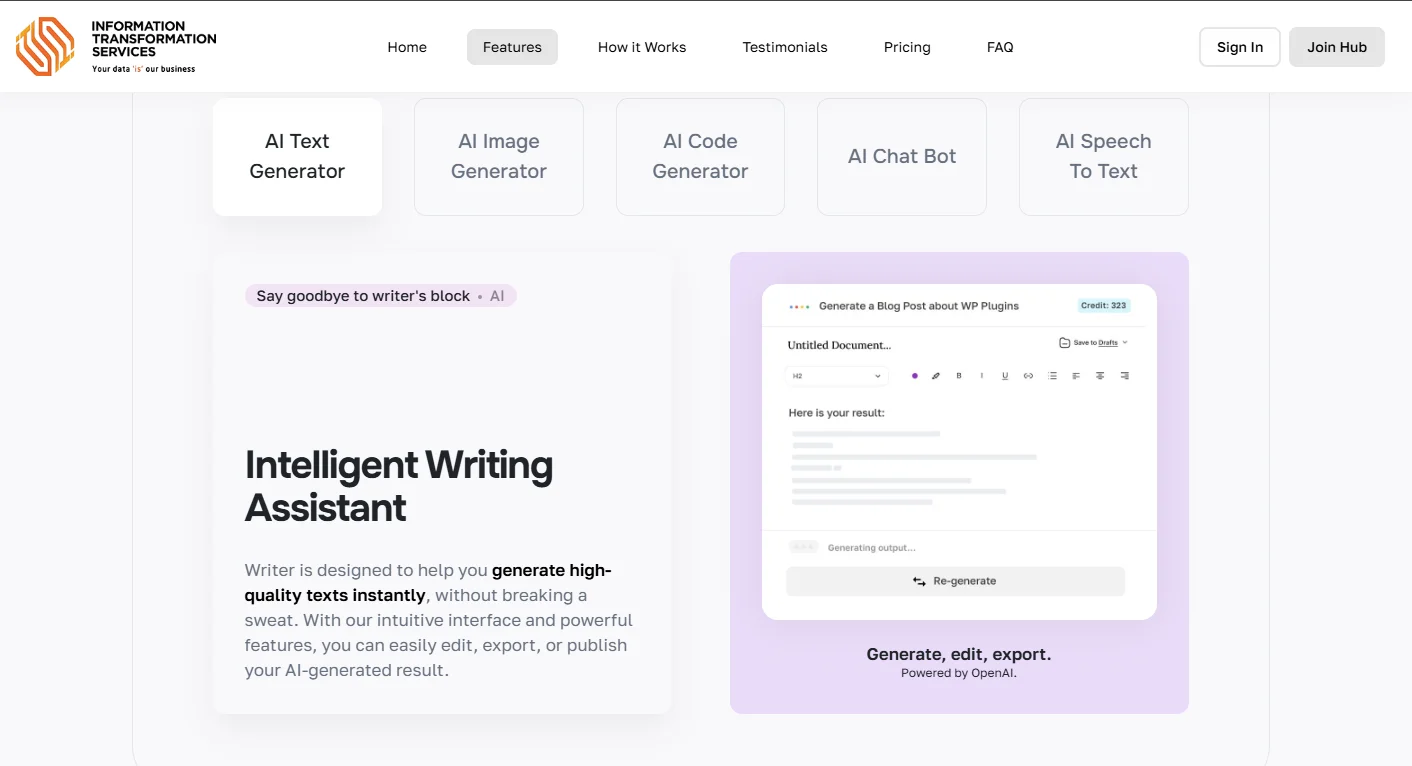
ITS AI Tools is a useful option if you want more than a basic image generator. It brings several AI features into one place, including AI image generation, content writing, prompt improvement, AI chat, code generation, and speech-to-text tools.
This makes it helpful for people who want to create both content and images without switching between many platforms.
For example, a blogger can write an article idea, improve an image prompt, and then generate a matching visual from the same workspace. A marketer can create social media copy and test image ideas in one place. A student can use it for creative projects, presentations, and visual planning.
Best for:
- Bloggers creating article images
- Marketers testing visual ideas
- Students working on creative projects
- Small businesses needing simple AI tools
- Content creators who want writing and image tools together
- Beginners who need help improving prompts
ITS AI Tools is worth adding to the list because it supports the full content workflow. Instead of only creating an image, users can plan the idea, write the prompt, improve the wording, and generate the visual from one dashboard.
Best Free Tool for Beginners
The best free AI image generator for beginners is usually Canva because it is simple and easy to use. You can generate an image, resize it, add text, and turn it into a social media post or blog graphic.
ITS AI Tools is also a good option for beginners who need help with prompts. If you are not sure what to write, you can first create or improve the prompt, then use it for image generation.
Choose Canva if you want design editing.
Choose ITS AI Tools if you want content writing, prompt help, and image generation in one place.
Beginner prompt example:
“Create a realistic blog image of a person using a laptop, clean desk, soft daylight, modern workspace, simple background, professional style."
Best Free Tool for Blog Images
For blog images, Canva, Adobe Firefly, and ITS AI Tools are strong choices.
Canva is good when you want to generate an image and design the final blog graphic. Adobe Firefly is good when you want a cleaner and more professional image style. ITS AI Tools is useful when you want to create blog content and matching image prompts from the same platform.
For blog images, keep your prompt simple and focused. A blog image should support the topic clearly. It should not look too crowded or confusing.
Blog image prompt example:
“Create a realistic featured image for a blog about AI image generators, laptop screen showing creative visuals, modern desk, soft light, clean background, professional tech style.”
Best Free Tool Without Watermark
The best free tool without watermark depends on the tool’s current plan and export rules. Some platforms may allow clean downloads on free plans, while others may add watermarks or limit quality.
Fotor is a good option to check for simple watermark-free image generation. Canva may also work well depending on the design elements and export settings you use. ITS AI Tools can also be a useful choice if its current plan supports clean image downloads.
Before publishing the image, always check:
- Does the final download have a watermark?
- Is the image quality good enough?
- Does the tool allow free download?
- Is signup required?
- Can the image be used for your purpose?
Prompt example for a clean website banner:
“Create a clean website banner showing AI creativity, glowing digital shapes, modern dark background, empty space on the left for text, high detail, no text.”
Best Free Tool for Commercial Use
For commercial-style use, Adobe Firefly and Canva are strong options to check because they are built for creators, designers, and business users.
ITS AI Tools can also be useful for commercial content workflows because users can create marketing copy, improve prompts, and generate visuals from one place.
Still, commercial use should always be checked carefully. Free plans and usage rights can change. Before using an AI image for ads, product pages, client work, or business branding, read the tool’s latest terms.
Before using an AI image commercially, check:
- Does the tool allow commercial use?
- Does the image include a watermark?
- Does the image copy a famous character?
- Does it include a real person or celebrity?
- Does it show a brand logo?
- Does the license fit your use case?
- Is the image clear and not misleading?
For business use, do not only choose the best-looking image. Choose the image that is safe, clean, and allowed for your purpose.
Free vs Paid AI Image Generators
Free AI image generators are good for testing ideas. Paid tools are better when you need more control, better image quality, larger downloads, faster generation, or clearer commercial-use options.
Here is a simple comparison:
| Feature | Free AI Image Generators | Paid AI Image Generators |
|---|---|---|
| Cost | Free to start | Monthly or credit-based |
| Image quality | Good for basic use | Usually better |
| Credits | Often limited | Higher limits |
| Watermark | May vary | Usually removed |
| Download quality | May be limited | Better export options |
| Editing tools | Basic | More advanced |
| Speed | May be slower | Usually faster |
| Commercial use | Must check terms | Often clearer |
| Best for | Testing and learning | Regular content or business use |
Start with free tools if you are learning. Move to a paid plan only when you need better quality, more images, or stronger business features.
Quick Tool Comparison
| Tool | Best For | Beginner Friendly | Good for Blog Images | Notes |
|---|---|---|---|---|
| Canva | Simple design and social media graphics | Yes | Yes | Good for editing after generation |
| Adobe Firefly | Professional-style images | Yes | Yes | Good for polished visuals |
| Fotor | Quick images and simple edits | Yes | Yes | Check current watermark rules |
| DeepAI | Fast prompt testing | Yes | Basic use | Good for practice |
| Leonardo AI | Creative control and detailed art | Medium | Yes | Better for advanced users |
| ITS AI Tools | Content, prompts, and images in one place | Yes | Yes | Good for bloggers and marketers |
How to Generate AI Images From Text Prompts for Free
Generating AI images from text prompts is simple once you follow the right steps.
Step 1: Choose the Right Free Tool
Start by choosing a tool based on your goal.
Use Canva if you want simple design editing.
Use Adobe Firefly if you want polished business-style visuals.
Use Fotor if you want quick image generation and basic edits.
Use DeepAI if you want fast prompt testing.
Use Leonardo AI if you want creative control.
Use ITS AI Tools if you want content writing, prompt help, and image generation in one place.
Do not choose a tool only because it says “free.” Check the limits first.
Before using a tool, ask:
- Does it offer free credits?
- Does it require signup?
- Does it add a watermark?
- Can I download the image?
- Is the image quality good enough?
- Can I use it commercially?
- Does it support the image style I need?
Step 2: Write a Clear Prompt
A prompt is the instruction you give to the AI. A short prompt may create a basic image. A clear prompt gives better results.
Bad prompt:
“Laptop”
Better prompt:
“Create a realistic photo of a modern laptop on a wooden desk, coffee cup beside it, soft morning light, clean workspace, professional blog image style.”
A good prompt should include:
- Main subject
- Image style
- Background
- Lighting
- Mood
- Purpose
- Extra details
The AI does not know what you mean unless you explain it clearly.
Prompt Template You Can Copy
Use this simple prompt template:
Create a [type of image] of [main subject], in [style], with [background], [lighting], [mood], [camera angle], and [quality details].
Example:
“Create a realistic blog featured image of a freelancer working on a laptop, in a modern home office, with soft daylight, calm professional mood, front-angle view, high detail, clean background.”
You can adjust this template for different image types.
Product Image Prompt Template
“Create a realistic product photo of [product name], on a clean [background type], with soft studio lighting, premium commercial style, sharp details, no text.”
Social Media Image Prompt Template
“Create a colorful social media image of [main subject], bright background, modern style, bold composition, high detail, no text.”
Website Banner Prompt Template
“Create a wide website banner showing [main subject], clean layout, modern style, soft lighting, empty space on the left for text, high quality.”
Blog Featured Image Prompt Template
“Create a realistic blog featured image about [topic], showing [main subject], clean background, soft lighting, professional style, no text.”
Step 3: Choose the Right Image Style
The same prompt can produce different results depending on the selected style.
Common AI image styles include:
- Realistic photo
- Digital art
- 3D render
- Cartoon illustration
- Watercolor
- Anime style
- Cinematic
- Minimalist
- Product photography
- Website banner style
For blogs and business content, realistic or clean digital styles usually work best.
For social media, bright colors and strong contrast can work well.
For product mockups, use realistic studio or commercial photography style.
For children’s content, cartoon or illustration styles may look better.
Do not choose a style only because it looks fancy. Choose the style that fits the image purpose.
Step 4: Generate the Image
Once your prompt and style are ready, click generate.
Most tools will show one or more image options. Do not expect the first image to be perfect. AI image generation usually needs a few tries.
After the image appears, check:
- Is the main subject correct?
- Does the background match the prompt?
- Is the style suitable?
- Does the image look natural?
- Are there any strange details?
- Is there enough empty space if you need to add text?
If the result is close but not perfect, do not start again from zero. Edit the prompt instead.
For example:
If the image is too busy, add:
“simple background, minimal objects.”
If the lighting is bad, add:
“soft natural light” or “studio lighting.”
If the image looks fake, add:
“realistic photo style, natural shadows, no cartoon effect.”
Step 5: Review and Edit the Result
AI images can look good at first glance, but small details may be wrong.
Check these areas carefully:
- Hands
- Faces
- Eyes
- Fingers
- Text
- Logos
- Shadows
- Background objects
- Product shapes
If you are using the image for a blog, ad, or business page, it should look clean and trustworthy.
Use editing tools to crop the image, fix brightness, remove unwanted objects, or regenerate weak areas.
Never publish an AI image without checking it first.
Step 6: Download and Use the Image Carefully
When you are happy with the image, download it in the best quality available.
Use JPG or WebP for blog posts and websites because they usually have smaller file sizes.
Use PNG for graphics that need a transparent background.
Before uploading the image to your website, rename the file clearly.
Bad file name:
image123.png
Better file name:
ai-image-prompt-example.png
Also add natural alt text.
Example:
“AI-generated image of a laptop on a clean workspace.”
Do not stuff keywords into the alt text. Keep it simple and descriptive.
Common Prompt Fixes
If your AI image does not look right, the prompt usually needs a small fix.
| Problem | Prompt Fix |
|---|---|
| Image looks too busy | Add “simple background, clean layout, fewer objects” |
| Image looks fake | Add “realistic photo, natural lighting, real-world details” |
| Main subject is unclear | Put the main subject at the start of the prompt |
| Wrong style | Add “realistic photo style” or “digital illustration style” |
| Bad lighting | Add “soft daylight,” “studio lighting,” or “warm evening light” |
| Strange hands or faces | Avoid close-up people, or add “natural hands, realistic face” |
| Text looks broken | Add “no text, no letters, no words” |
| Background is wrong | Describe the exact background you want |
| Image is too dark | Add “bright, clean lighting” |
| Too many random objects | Add “minimal scene, only one main subject” |
A small prompt change can improve the result a lot.
AI Image Prompt Examples for Beginners
Here are simple prompt examples you can copy and edit.
Blog Featured Image Prompt
“Create a realistic blog featured image of a person using an AI image generator on a laptop, modern desk setup, soft daylight, clean background, professional digital workspace style.”
Social Media Prompt
“Create a colorful Instagram-style image of a young creator designing AI art on a tablet, bright background, modern creative mood, clean composition, high detail, no text.”
YouTube Thumbnail Prompt
“Create a bold YouTube thumbnail image showing a surprised person looking at AI-generated artwork on a screen, bright lighting, dramatic expression, clean background, high contrast, no text.”
Product Mockup Prompt
“Create a realistic product photo of a skincare bottle on a white marble surface, soft studio lighting, minimal background, luxury brand style, sharp details, no text.”
Website Banner Prompt
“Create a wide website banner showing futuristic AI creativity, glowing digital elements, clean dark background, modern tech style, empty space on the left for text.”
Ad Image Prompt
“Create a professional ad-style image of a small business owner creating marketing visuals with AI, modern office background, confident mood, natural light, clean commercial look.”
Presentation Image Prompt
“Create a clean business presentation image showing an AI image generation workflow, laptop screen, creative icons, modern workspace, minimal and professional style, no text.”
Tips to Get Better AI Image Results
Be Clear About the Main Subject
Tell the AI exactly what the image should focus on.
Instead of writing:
“Office image”
Write:
“Modern office desk with a laptop, notebook, coffee cup, soft daylight, clean background.”
Add the Purpose
Mention if the image is for a blog, ad, website banner, thumbnail, product mockup, or social media post.
This helps the AI create a more suitable layout.
Use Lighting and Mood
Lighting can change the whole image.
Try words like:
- Soft daylight
- Studio lighting
- Warm mood
- Clean background
- Professional look
- Cinematic lighting
Keep One Main Idea
Do not add too many subjects in one prompt.
A prompt with a beach, office, robot, car, city skyline, and product display may create a messy image.
One clear idea usually works better.
Generate More Than One Version
The first result is not always the best. Try two or three versions and compare them.
Choose the image that looks most natural and useful.
Edit Before Publishing
Crop the image, adjust brightness, resize it, and remove distracting parts if needed.
AI images often need small edits before they look ready for a blog, ad, or social media post.
Common Mistakes to Avoid
Writing Very Short Prompts
Prompts like “business image” or “robot” are too vague. Add the subject, style, background, lighting, and purpose.
Adding Too Many Ideas
Too many details can confuse the AI. Keep the image focused.
Ignoring Small Details
AI can create strange hands, fake text, odd shadows, or broken objects. Always review the image.
Using Famous Characters or Brand Names
Avoid using celebrities, famous characters, protected logos, or brand designs unless you have permission.
Not Checking Usage Rights
Free tools have different rules. Always check whether the image can be used for your purpose.
Are AI-Generated Images Safe to Use?
AI-generated images are generally safe to use when you follow the tool’s rules and review the image carefully.
Before publishing, check:
- The tool’s usage rights
- The image quality
- Any unwanted logo or text
- Whether it copies a famous character
- Whether it could mislead people
- Whether commercial use is allowed
AI images are helpful, but they still need human review.
Can You Use AI Images for Blogs, Social Media, and Marketing?
Yes, you can use AI images for blogs, social media, and marketing if the image matches your content and follows the tool’s usage rules.
For blogs, use images that support the topic clearly. If your article is about AI tools, use a clean tech-style image instead of a random futuristic picture.
For social media, AI images can help you create fresh visuals for Instagram, Facebook, LinkedIn, Pinterest, and YouTube thumbnails.
For marketing, AI images can help with ad concepts, campaign ideas, product mockups, and landing page visuals.
Before using any AI image for business, check the license, review the image quality, and make sure the visual does not mislead users.
Final Thoughts
Learning how to generate AI images from text prompts for free is easier when you follow a clear process.
Start with the right tool. Write a clear prompt. Choose a matching style. Generate more than one version. Review the details. Then download and use the image carefully.
For beginners, Canva is a simple starting point. For blog images, Canva, Adobe Firefly, and ITS AI Tools are useful options. For watermark-free downloads, check each tool’s current export rules before publishing. For commercial-style use, choose tools with clear usage terms and clean image quality.
ITS AI Tools is also worth trying if you want one place for content writing, prompt improvement, AI chat, and image generation. This can help bloggers, marketers, students, and small businesses create both words and visuals from the same workspace.
The best AI image generator is not always the one with the most features. It is the one that helps you create the image you need with fewer problems.