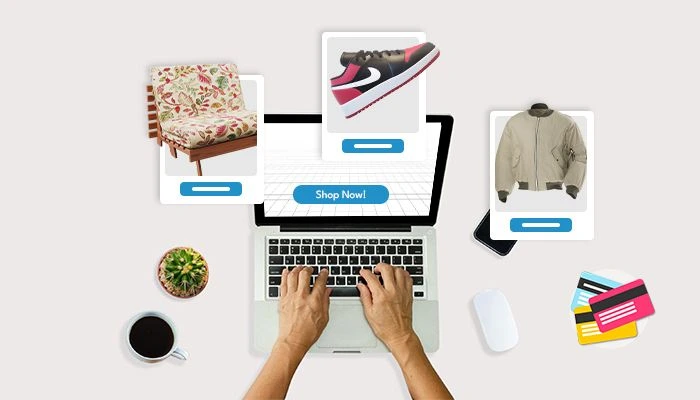
Running an online store is tough, isn’t it? You spend hours taking great photos, writing detailed descriptions, maybe even adding videos, and yet customers still hesitate. They abandon their carts or return products, saying, It looked different online. That’s the problem: shoppers can’t touch, rotate, or really examine your products like they would in a physical store. And when they’re unsure, they simply don’t buy. That’s where 3D modeling for virtual product showcases in online stores makes a huge difference. Instead of flat, lifeless images, 3D models let your customers interact with products, rotate them, zoom in, and see every detail from all angles. It builds trust, reduces returns, and boosts sales. In this guide, you’ll get a step-by-step look at how to use 3D modeling effectively and turn your product pages into engaging, immersive shopping experiences that are really worth it.
Step-by-Step Actionable Guide for Implementing 3D Product Showcases
Here’s how you can actually set up 3D product models on your online store, whether you use Shopify, WooCommerce, or a custom website.
Step 1: Pick the Right Products to Model
Not every product needs 3D. Start with items that:
-
Are high-value or frequently returned
-
Have multiple angles or features that customers care about
-
Would benefit from close inspection (like furniture, electronics, or fashion accessories)
Action: Make a short list of 3–5 products to start testing 3D on.
Step 2: Create or Source High-Quality 3D Models
Option A – Do It In-House:
-
Use software like Blender, Autodesk Maya, or Tinkercad
-
Ensure realistic textures, correct scale, and proper lighting
Option B – Hire Professionals:
-
Platforms like Fiverr or Upwork have 3D modelers
-
Provide your product images, dimensions, and any material references
Action: Get at least one test model ready and check it for detail, realism, and size.
Step 3:Optimize Your 3D Files for the Web
Big files = slow loading = frustrated shoppers.
-
Compress models to under 20MB per product
-
Use web-friendly formats like .glb (glTF) or .usdz for Apple devices
-
Remove unnecessary polygons or extra details that aren’t visible
Action: Test your 3D file by opening it on a smartphone browser to see load times.
Step 4: Upload and Integrate Models into Your Store
For Shopify:
-
Go to Shopify Admin > Products
-
Select a product → scroll to the Media section
-
Click Add media from file → upload your .glb file
-
Preview the product page → ensure rotation and zoom work
For WooCommerce:
-
Install the Model Viewer for WooCommerce plugin
-
Edit the product → scroll to the 3D Model section
-
Upload .glb or .usdz file
-
Enable 3D Viewer and save changes
For Custom Sites:
-
Use Three.js or the model-viewer.js library
-
Embed code snippet:
<model-viewer src="product.glb"
alt="3D Product"
auto-rotate camera-controls
ar ar-modes="webxr scene-viewer quick-look">
</model-viewer>
Step 5: Make Interaction Obvious for Users
-
Add labels like Drag to Rotate or Pinch to Zoom
-
Use hotspots or small icons to highlight special features
-
Include a reset button so users can return to the default view
Action: Make sure anyone landing on the page instantly knows how to interact with your product.
Step 6: Test Across Devices and Browsers
-
Check desktop, mobile, and tablet
-
Try Chrome, Safari, Firefox
-
Test slow connections to ensure models load smoothly
Action: Make a checklist and test every device type before going live.
Step 7: Monitor Engagement and Optimize
-
Track time spent interacting with 3D models
-
Monitor add-to-cart and conversion rates
-
Adjust models, hotspots, and instructions based on real data
Action: Use Google Analytics or Hotjar to see what’s working and where users drop off.
Best Practices and Common Mistakes for 3D Product Showcases
Once your 3D models are live, it’s not over. The difference between a good showcase and a frustrating one is all in how users interact with it. Here’s a practical steps for making it work and avoiding mistakes that can kill conversions.
1. Give Clear Instructions
-
Add text like “Drag to Rotate”, “Pinch to Zoom”, or “Click Hotspots for Details” directly on the viewer.
-
Use arrows or subtle animation to indicate interactivity.
Action: Test on someone who has never seen your product; they should instantly know what to do.
2. Highlight Key Features
-
Use hotspots or clickable icons to zoom into important parts of your product.
-
Example: On a laptop, a hotspot can zoom in on ports, keyboard, or screen details.
Action: Place hotspots where users naturally look, but keep them small and easy to tap.
3. Keep Navigation Simple
-
Only include essential controls: rotate, zoom, reset, and hotspots.
-
Avoid extra buttons or clutter that distracts from the product itself.
Action: One-click interaction wins over multiple confusing menus.
4. Combine 3D with Static Images or Videos
-
Keep traditional images for quick browsing.
-
Add a short 360° video or GIF for people who don’t want to drag manually.
Action: Use at least one high-quality image, one 3D interactive model, and an optional 360° video per product.
5. Optimize for Mobile
-
Make sure touch gestures work smoothly: pinch to zoom, swipe to rotate.
-
Ensure hotspots are tappable without zooming.
Action: Test in both portrait and landscape on phones.
Common Mistakes to Avoid
1. Heavy 3D Files
-
Avoid huge files that take minutes to load.
-
Compress models and use web-optimized formats (.glb, .usdz).
Action: Keep each file under 20MB and check load speed on mobile.
2. Hidden Interactivity
-
Don’t assume users will know to click or drag.
-
Invisible hotspots or missing instructions = frustrated users.
Action: Always add visual cues and short text instructions.
3. Overcomplicated Interfaces
-
Too many buttons or settings overwhelm customers.
-
Keep it simple and intuitive: rotate, zoom, and click key features.
Action: Ask someone unfamiliar with the product to test the interface—if they struggle, simplify it.
4. Ignoring Analytics
-
Without tracking, you won’t know if your 3D showcase improves engagement or conversions.
Action: Set up Google Analytics events for time spent interacting, hotspot clicks, and add-to-cart actions. Adjust based on real data.
5. Skipping Device Testing
-
Many stores launch 3D models without testing mobile, tablet, or slow internet connections.
Action: Test every model across devices and browsers before going live.
How AI.IT.S Chat Can Help You Make the Most of 3D Product Showcases
Using 3D models in your online store is just one part of the puzzle. To really turn clicks into sales, you need content, instructions, marketing, and strategy, and that’s exactly where AI.IT.S Chat comes in
Even though it doesn’t create 3D models directly, it can supercharge every step around them:
-
Plan Your 3D Strategy: Struggling to decide which products to 3D model first? AI.IT.S Chat can help generate product prioritization plans, showcase strategies, and content outlines so you know exactly where to start.
-
Write Engaging Product Descriptions: Your 3D models need words that sell. The tool can create SEO-friendly descriptions, highlight key features, and provide interaction instructions like Drag to rotate or Pinch to zoom, making your 3D showcase more effective.
-
Create Supporting Content: Educate your shoppers with blogs, guides, and FAQs. AI.IT.S Chat can write step-by-step guides, AR tutorials, and customer-friendly instructions that help buyers fully interact with your 3D products.
-
Optimize for SEO and Marketing: 3D models alone won’t drive traffic. Use the tool to generate meta titles, headings, and SEO content that attract organic visitors and increase exposure for your virtual product showcases.
-
Analyze and Improve Engagement: The tool can provide ideas for tracking clicks, rotations, and interaction time, helping you make data-driven improvements to your 3D pages.
Future Trends and ROI: Why Investing in 3D Product Showcases Pays Off
Implementing 3D product models isn’t just a cool tricki t’s an investment that can boost sales, reduce returns, and future-proof your online store. Here’s what you need to know, including upcoming trends you can leverage.
1. Higher Conversion and Engagement Rates
-
Stores using 3D models report up to 40% longer engagement on product pages.
-
Customers feel confident because they can inspect products from all angles, which reduces hesitation and encourages purchase.
Action: Track metrics like add-to-cart rate and time on page to see improvements after adding 3D models.
2. Reduced Product Returns
-
Many returns happen because the product “looked different” online.
-
3D showcases remove surprises, giving buyers a realistic sense of size, texture, and design.
Action: Monitor return rates for products with 3D models and compare them to traditional photo-only products.
3. Future Trends in 3D eCommerce
AI-Generated 3D Models
-
AI tools can now automatically create 3D models from 2D images.
-
This makes it faster and cheaper to expand 3D catalogs.
Action: Explore AI tools like Kaedim or Spline AI to speed up 3D modeling.
Augmented Reality (AR) Shopping
-
AR lets customers place products in their real environment through smartphones or tablets.
-
Example: See how a chair fits in your living room before buying.
Action: Use AR-enabled 3D models (glTF or USDZ) for furniture, home décor, or fashion.
Personalized and Configurable Products
-
Customers can change colors, textures, or components in real time.
-
This interactive customization improves engagement and satisfaction.
Action: Implement configurable 3D models for high-value products like electronics, vehicles, or furniture.
Immersive VR Showrooms
-
Virtual reality allows shoppers to walk through digital showrooms from home.
-
While more advanced, VR can differentiate your brand as forward-thinking.
Action: Keep an eye on VR adoption—start experimenting with a few high-profile products.
4. Measuring ROI for 3D Product Showcases
-
Engagement Metrics: Time on page, rotations per visitor, hotspot clicks
-
Conversion Metrics: Add-to-cart, completed purchases, upsell success
-
Customer Satisfaction: Reduced returns and positive reviews
Action: Compare before-and-after metrics to determine whether your investment in 3D models is paying off.
Conclusion: Make Your 3D Product Showcases Work for You
3D product models are no longer just a “nice-to-have”—they’re essential for online stores that want to reduce returns, increase conversions, and stand out from the competition.
By following the step-by-step guide, applying best practices, and making your 3D models easy to interact with and well-explained, you can turn flat product listings into immersive, engaging shopping experiences.
The key is to focus on clarity, interactivity, and user experience. When done right, your virtual product showcases will boost engagement, build trust, and drive sales, giving your store a clear advantage in today’s competitive e-commerce market.